

Download the app for free!
Download the app for free in the Apple Store (iOS) or the Google Play Store (Android devices).
The augmented reality (AR) tour of Penn’s campus is the first of its kind among peer institutions that are investigating their historic ties to slavery. The app takes users on a tour of slavery’s legacy at Penn in six stops, each telling a story through an AR experience. You can experience the AR app no matter where you are and learn about the student research that helped to shed light on this history.
The app was created by an interdisciplinary team of historians, librarians, developers, and designers. This section of the website expands on the research featured in the app with links to further research conducted by students.
About the App
The original intention of this project was to spatially locate the University’s role and complicity in the institution of slavery onto the current campus. During the process of creating the app, we decided that this history of slavery, though particular to this institution, should be accessible to an audience broader than the campus community. You can experience the AR app no matter where you are and learn about the student research that helped to shed light on this history.
The tour has 6 stops, each of which tells a part of the story of Penn’s deep relationship to slavery, including the University’s founding, its history as an academic institution, And the experience of marginalized Black and Indigenous lives. The AR app provides an opportunity to creatively present and engage with the university’s legacy in a manner that we hope brings more people into the conversation about the history of race and slavery at Penn and elsewhere in the United States.
Download the app to learn the role slavery played in the foundation of the university and the country and join the conversation.
Instructions
Getting Started

- Go to the App Store/ Google Play Store on your phone or tablet. Search for “Penn&Slavery” to download the free app.
- Download and open the application. Make sure the sound on your device is not muted, so you will be able to hear the audio track.

- Press “Start” to begin the app.
- You will proceed through opening screens that tell you about the project. Next, you will see a map screen with six stops.
Map Information
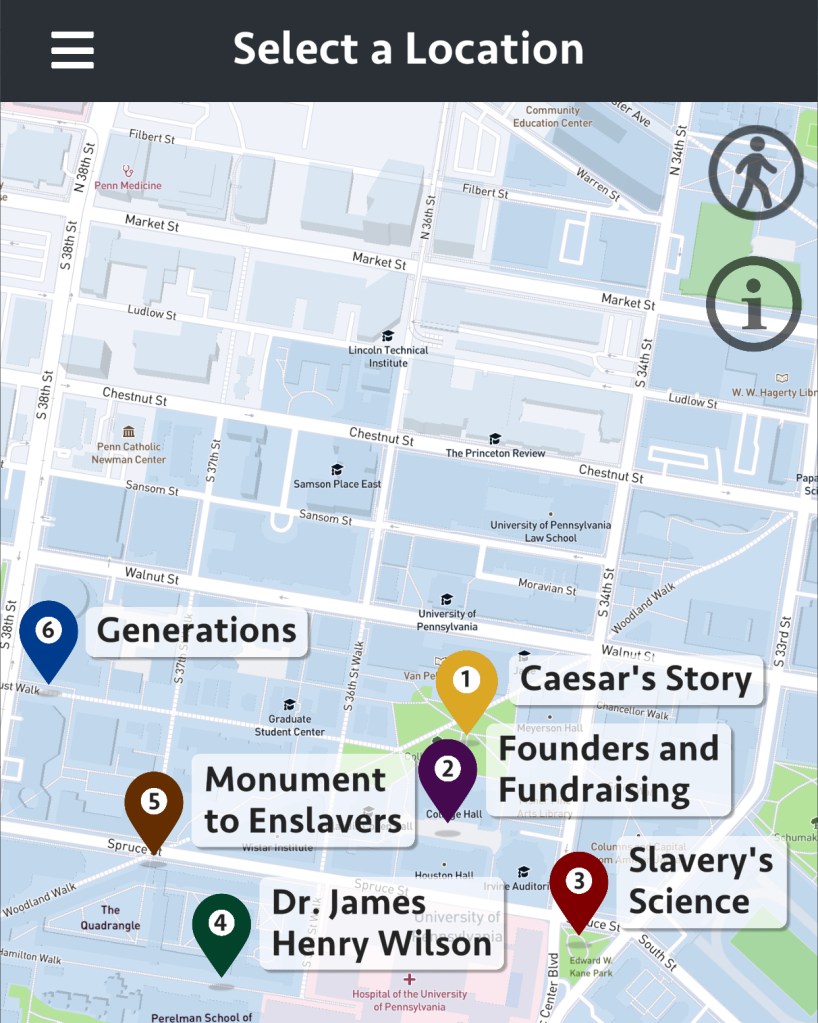
- To learn more about how to use the app, click on the grey circle icon with the “i” in it.
- If you are on campus, you can see the suggested walking route of the tour by clicking the grey circle icon with the walking person in it.
- You can zoom into the map by using two fingers to expand the map image, and then you can zoom out by pinching two fingers together.
- You can move the map by dragging it with a finger.
- Throughout the tour, you can use the arrow at the top to navigate back to the previous screen.
Taking the Tour

- Choose a stop by clicking on a numbered pin on the map. We recommend starting at stop #1.
- Click “Enter” below the description of the stop.
- Each stop opens with a short exhibit and the opportunity to read more.
- Selecting “read more,” will direct you to the Penn and Slavery Project website where you will find more information about the augmented reality (AR) stop. Clicking the small arrow in the top left corner will return you to the app.
- Scroll down to see additional objects from the story. Each stop ends with an “Archival Gallery.” Click on the thumbnail images to read more about the objects in the gallery.
Navigating the Augmented Reality Experiences
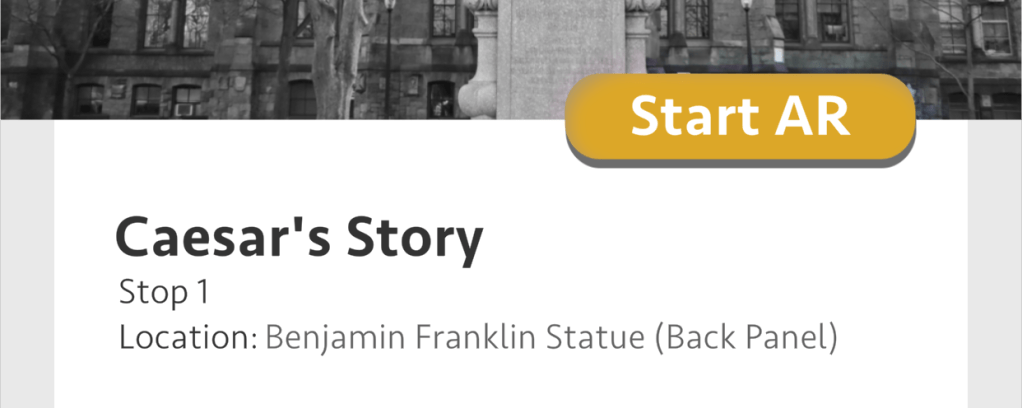
- Press “Start AR” to begin the augmented reality experience at the stop.
- Your device may prompt you to allow the app to use your device camera. Please allow this.
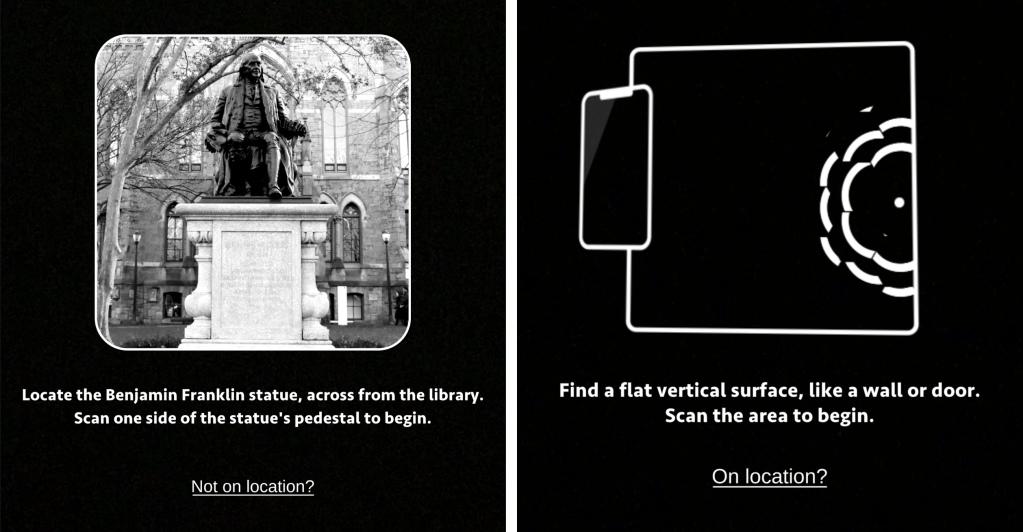
- If you are not on campus, tap “Not on location?”
- To trigger the AR experience, aim your device camera at the flat wall or floor surface. Respond to the prompt by tapping your screen.
- Once the AR experience is activated, walk, turn around, and move your device to explore the AR images and objects. In some experiences, you can also tap objects to learn more about them.
- If you are standing too close (to the flat surface or where you placed the marker on the ground), your phone screen will not capture the full AR image.
- You may need to move back several steps to get the full image into your screen once you have activated it.
- To conclude your experience at each stop, touch the “Continue” button and you will return to the tour map.

Launch Event
Archived here is the event schedule & program for the Augmented Reality launch event held on February 19, 2021.
View archived event program
Program of Events
I. INTRODUCTORY REMARKS
- Professor Kathleen Brown, Advising Professor
- University Provost Wendell Pritchett
- Short Video Introducing the App
II. MAKERS PANEL
Panel I
- Dillon Kersh, Student Researcher, Editorial Board Member
- Dr. Katie Rawson, Coordinator for Digital Research at Penn Libraries
- Matt Napolillo, Experience Developer at Dream Syndicate
- Elizabeth Carson Eckhard, Student Researcher, Editorial Board Member
- Archana Uphadayay, Student Researcher, Social Media Manager
Panel II
- VanJessica Gladney, Student Researcher, Public History Fellow, Website Manager
- Breanna Moore, Student Researcher, Exhibit Designer, Penn Ph.D. Student
- Professor Alexis Broderick Neumann, Advising Professor, Post-Doc Researcher
- Malkia Okech, Student Designer, Community Activist
- Meaghan Moody, Immersive Technologies Librarian
- Mat Tidridge, Senior Experience Developer at Dream Syndicate
- Dallas Taylor, Student Researcher, Project Manager
III. ROUNDTABLE
- Professor Deborah Thomas, Director, Center of Experimental Ethnography
- Dominique Wilkerson, Penn History Graduate Student
- Sophie Nichols, Penn Undergraduate
- Louis Massiah, Executive Director, Scribe & Documentary Filmmaker
- Abdul-Aliy Muhammad, Philadelphia Community Activist, co-founder of the Black & Brown Workers Co-op, & Freelance Journalist
IV. AUDIENCE QUESTIONS FOR MAKERS & ROUNDTABLE SPEAKERS
- Attendees will use the Q&A Chat function to submit questions during the webinar
Registration Link: bit.ly/PSProjectAR
 Penn & Slavery Project